Save your backup jobs
Select a source folder and destination parent. Falign saves your backup inside a folder with the source folder's name.

FOLDER BACKUP FOR WINDOWS
Your folders. Your backup.
Copy what matters. Keep your backup jobs in one place.
From a quick manual copy to a regular backup routine.
Free manual backups · Optional Pro plans
A CLEARER BACKUP ROUTINE
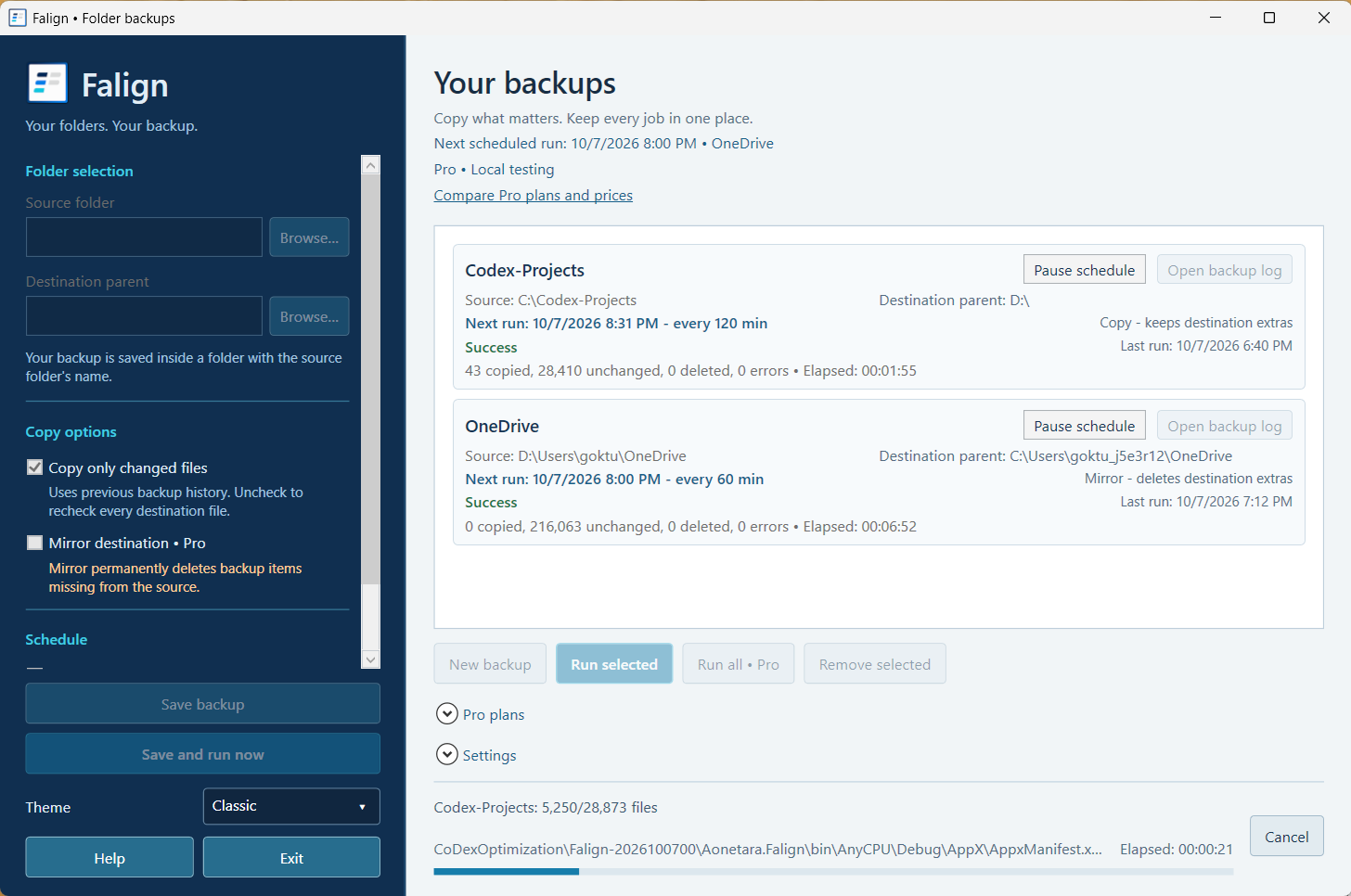
Choose your folders, save the job, and see how each run went.
Select a source folder and destination parent. Falign saves your backup inside a folder with the source folder's name.
Use previous backup history to copy only changed files. You can also recheck every destination file.
Review copied, unchanged, deleted, and error counts, plus the last run and elapsed time.
Set recurring backups and check the next run. Schedules run while Falign is open, including in the tray.
Keep the destination aligned with the source. Mirror mode permanently removes destination items missing from the source.
Manage unlimited saved backup jobs and run them all from the same workspace.
Pick the folder you want to back up.
Select the parent folder where your backup will live.
Run your backup and review the result. Add a schedule with Pro.
FREE TO START. ROOM TO GROW.
Start with manual backups. Choose Pro when you need more.
FREE
FALIGN PRO
Monthly, annual, or lifetime access. View current prices inside Falign.
Get Falign and explore Pro →Backups do not keep older file versions. Mirror mode permanently deletes extra destination files. Scheduled backups require Falign to remain open.
GOOD TO KNOW
Copy mode keeps extra destination items. Pro mirror mode permanently deletes destination items missing from the source. Check your selected folders before using it.
No. Keep Falign open, including in the tray, for scheduled backups to run.
Falign does not upload backup files to Aonetara servers. A cloud-synchronized folder may sync through its own provider. See the privacy policy for details.
Open Pro plans inside Falign to see current Microsoft Store prices for monthly, annual, and lifetime options.
Get Falign from the Microsoft Store.